Getting started
Learn how to use Happens
A step-by-step guide to voice journaling, AI insights, mood tracking, and more. From your first recording to weekly reflections.
Download Happens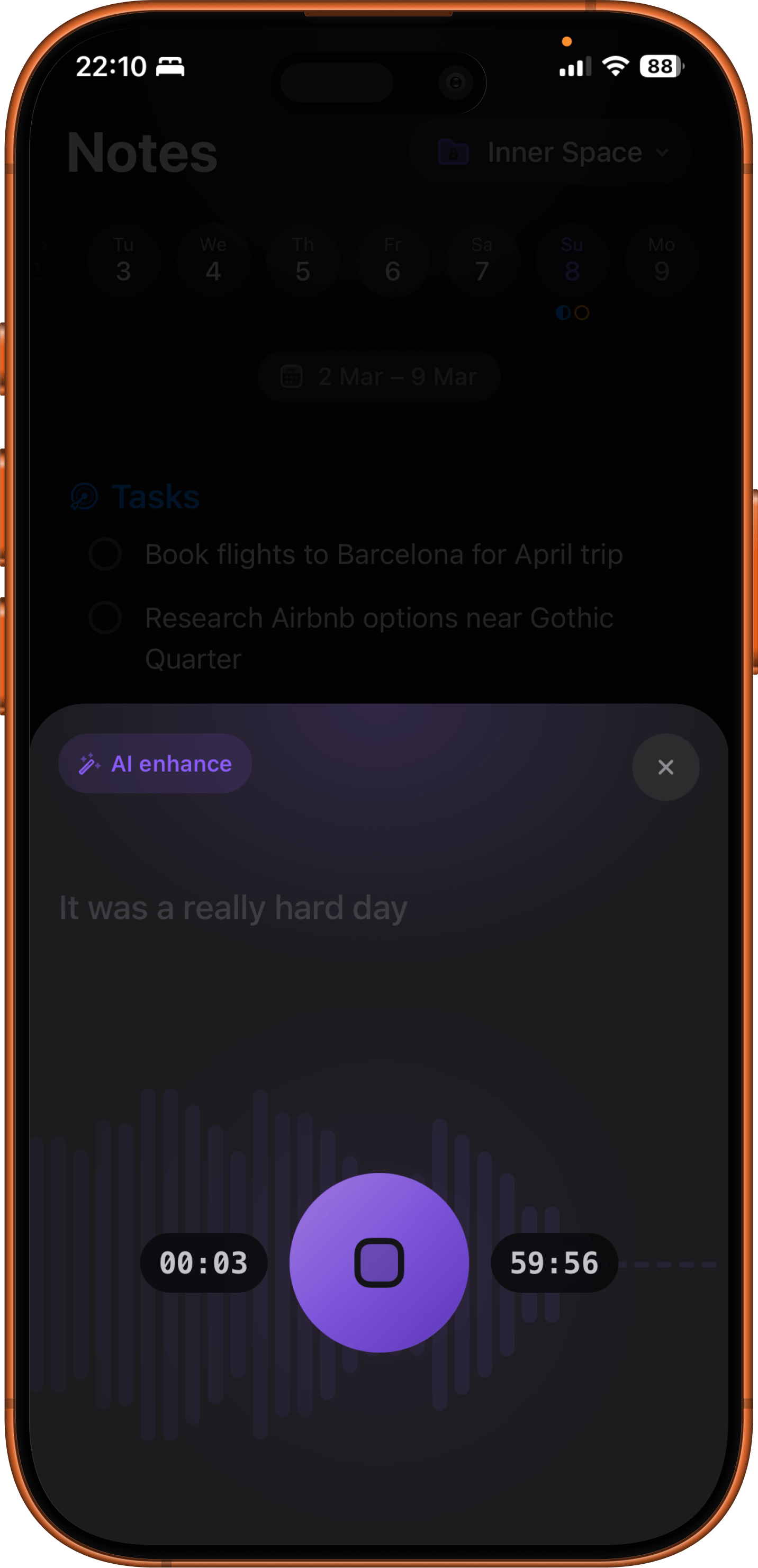
Tap the mic and start talking
Open Happens and tap the purple microphone button at the bottom of the screen. Start speaking naturally about your day, ideas, or whatever is on your mind. No structure required.
- Tap the purple mic button to begin recording
- Speak naturally — recording length depends on your plan (free or premium)
- See your words transcribed in real time as you talk
- Tap the stop button when you are done
- Your note is saved automatically with the transcript
Tip: Switch voice input language by tapping the flag icon next to the mic button. Happens supports 30+ languages.
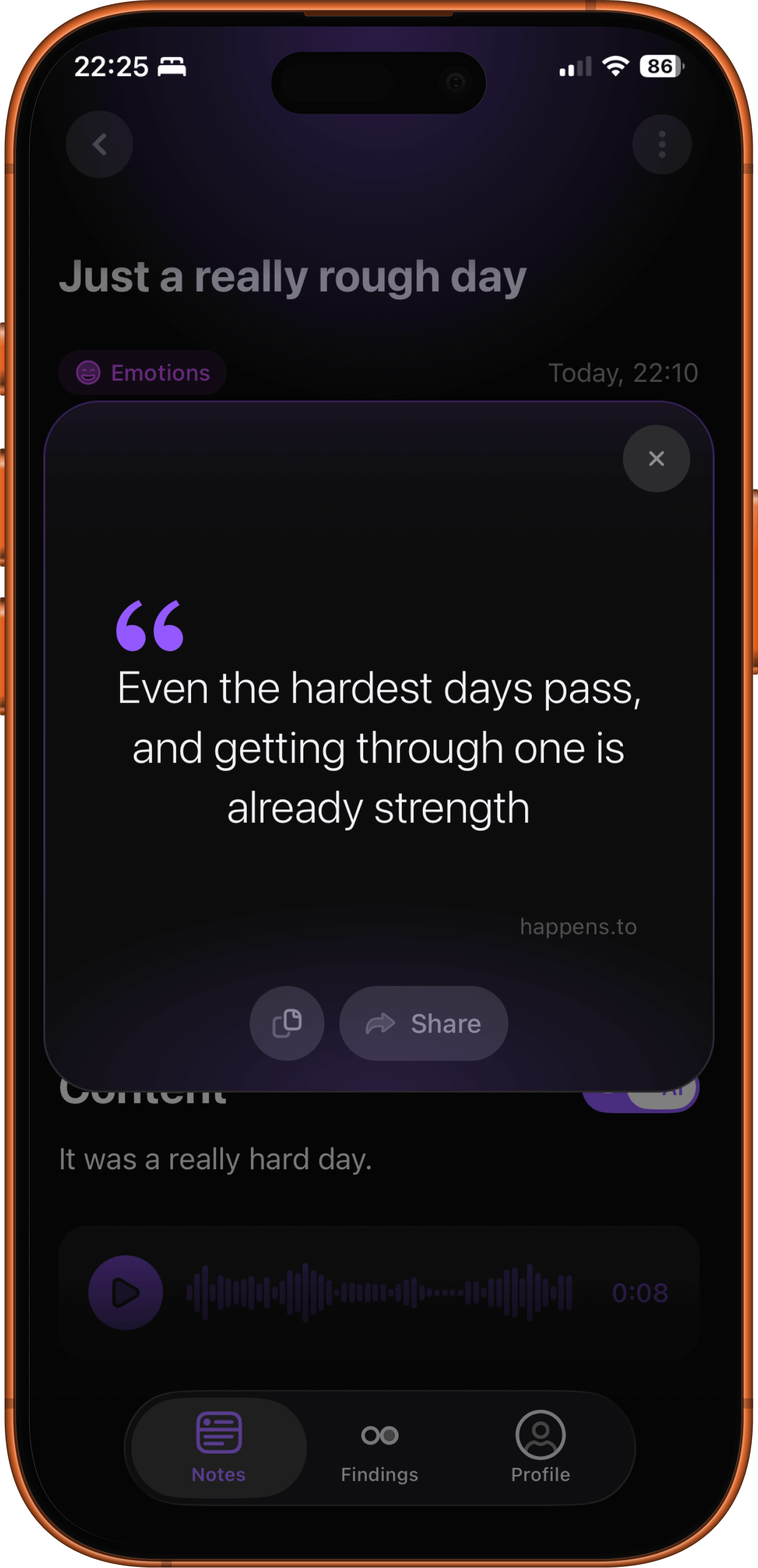
See your words, enhanced by AI
After you stop recording, Happens instantly transcribes your voice note using built-in speech recognition. Play back the audio, read the transcript, and tap AI Enhance to improve transcription accuracy and clarity.
- Your transcript appears automatically after recording
- Play back the audio anytime with the built-in player
- Tap "AI Enhance" to improve the transcription quality beyond built-in speech recognition
- Share AI-generated quotes as images
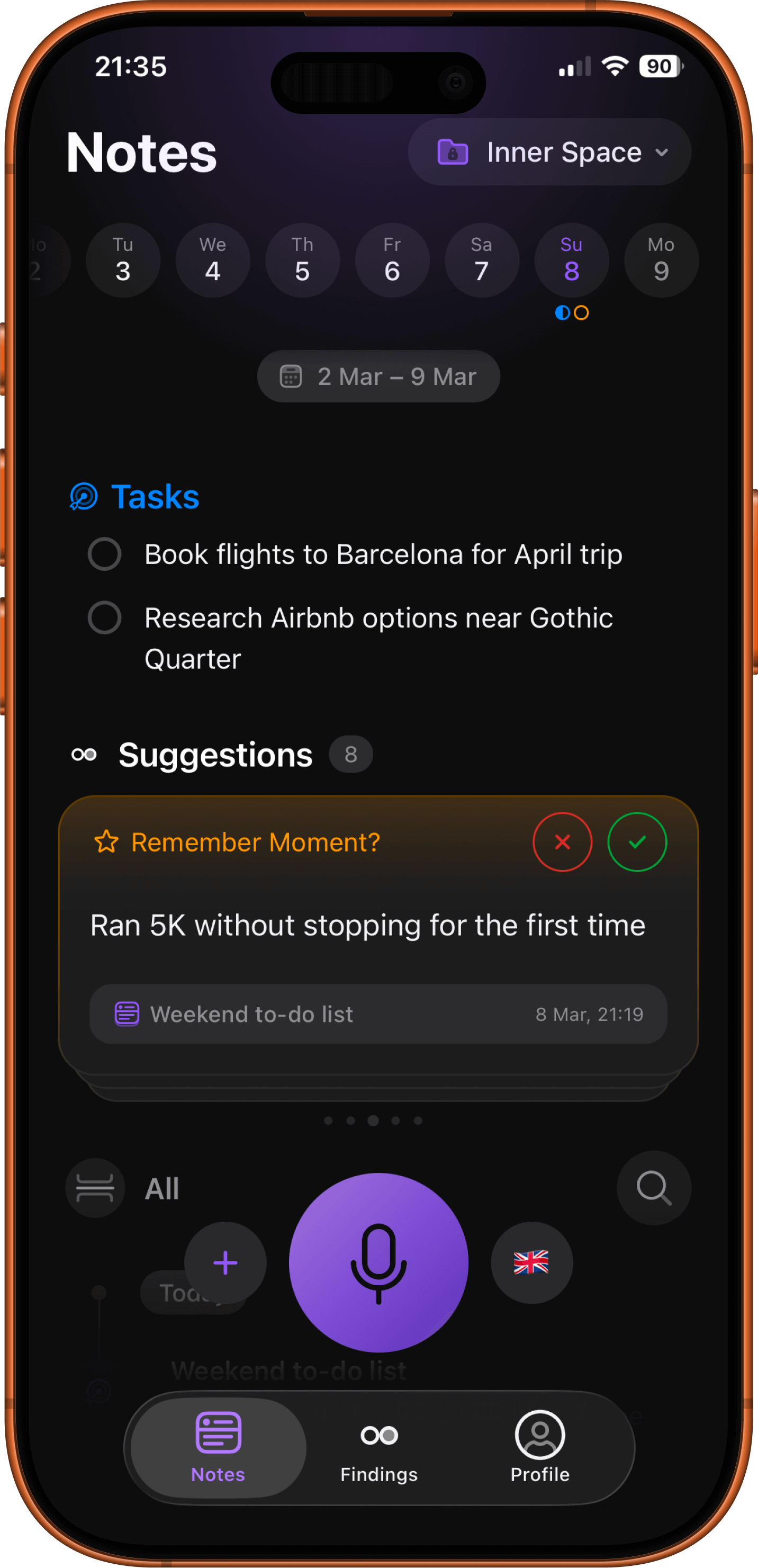
AI finds what matters in your words
Happens automatically detects tasks and meaningful moments from your voice notes. When AI finds something, it appears in the Suggestions section on your Notes screen. You decide what to keep.
- Tasks you mentioned are extracted automatically
- Meaningful moments appear as "Remember Moment?" suggestions
- Accept or dismiss each suggestion with one tap
- Accepted tasks get added to your task list with deadlines
- Accepted moments are saved to your Findings dashboard
Tip: You don't need to say "remind me to..." for task extraction. Just mention something naturally like "I need to book flights" and AI will catch it.
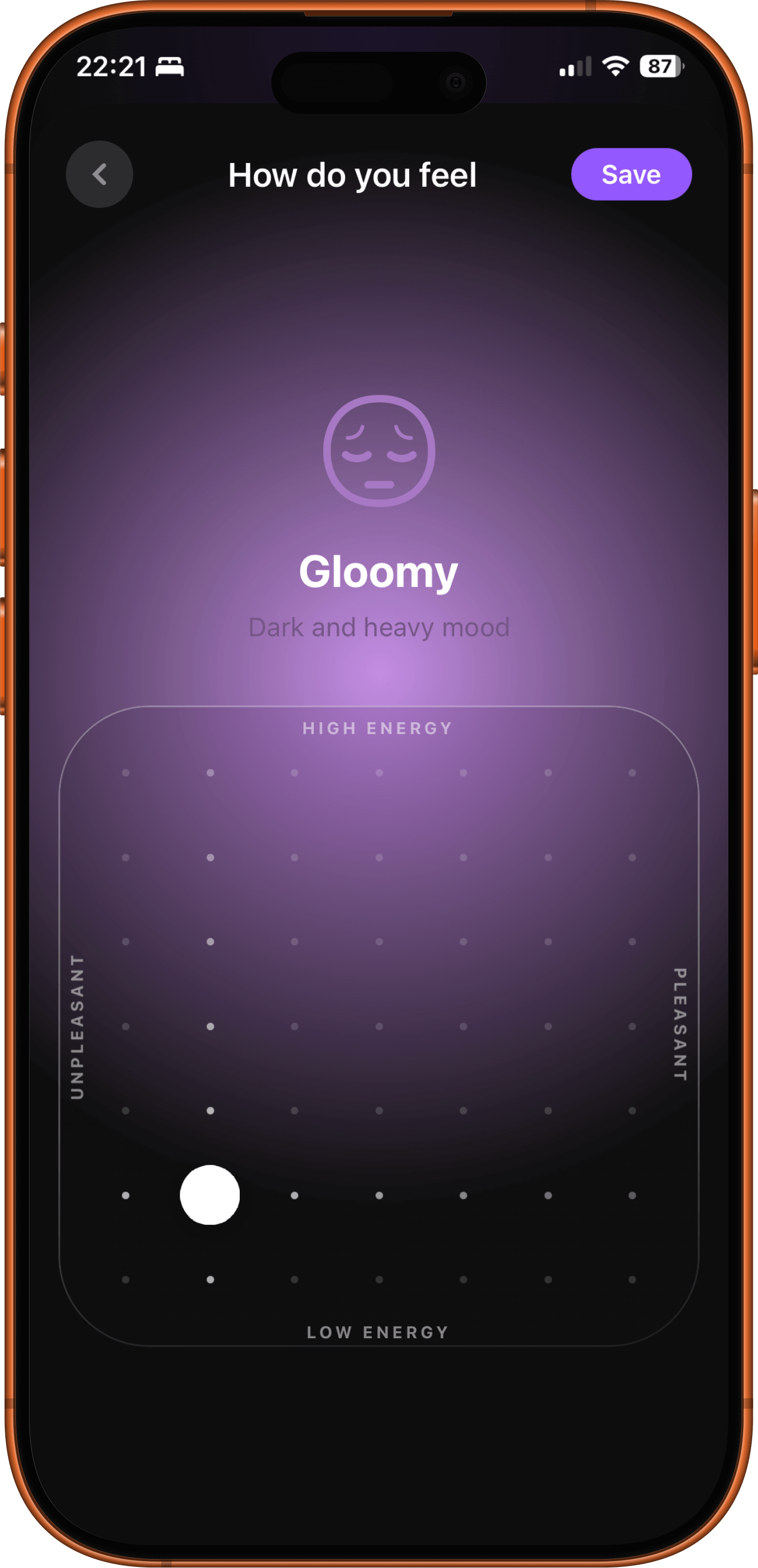
Check in with how you feel
After recording a note, Happens can ask how you feel. Use the mood grid to place your emotional state on two axes: pleasant to unpleasant, and high energy to low energy. The app names the emotion for you and tracks it over time.
- Drag the dot on the mood grid to match how you feel
- The app labels your mood automatically (e.g. Gloomy, Excited, Calm)
- Track your mood patterns over days and weeks
- Sync mood and emotion data to Apple Health as State of Mind
- Mood data feeds into your AI reflections
- No forced check-ins -- only when you want to
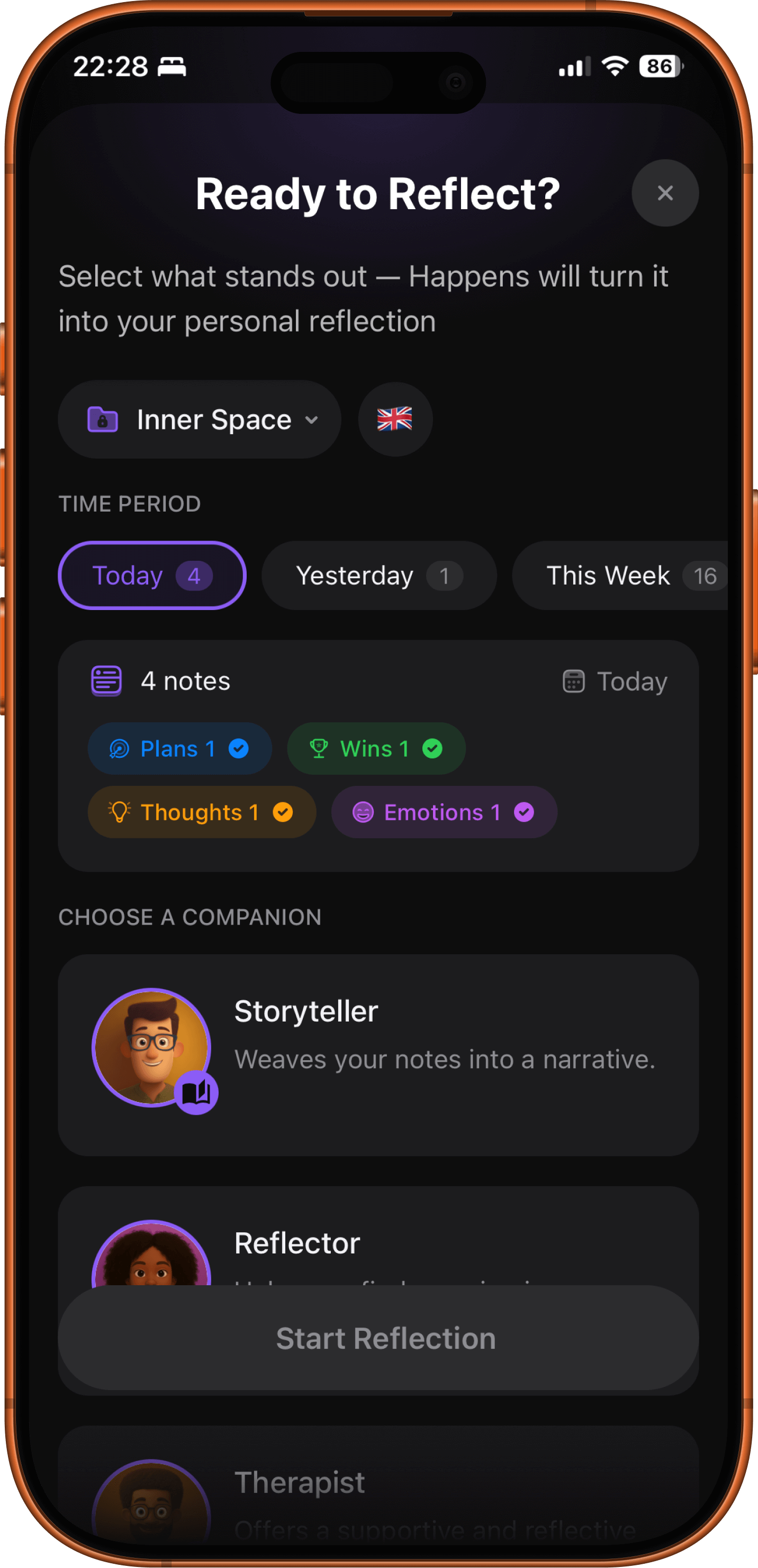
Choose how you want to reflect
Tap the reflection button to open the AI reflection screen. Choose a time period (today, yesterday, or the full week), select an AI companion that matches your mood, and tap Start Reflection.
- 9 AI companions: Storyteller, Reflector, Therapist, Strategist, Project Manager, Career Consultant, Creative Assistant, Productivity Coach, Encourager
- Select a time period: today, yesterday, or the whole week
- AI reads only the notes from that period
- Get personalized reflections based on your actual entries
- Switch companions anytime for different perspectives
Tip: The reflection screen shows a summary of your notes (Plans, Wins, Thoughts, Emotions) so you can see what the AI will work with before starting.
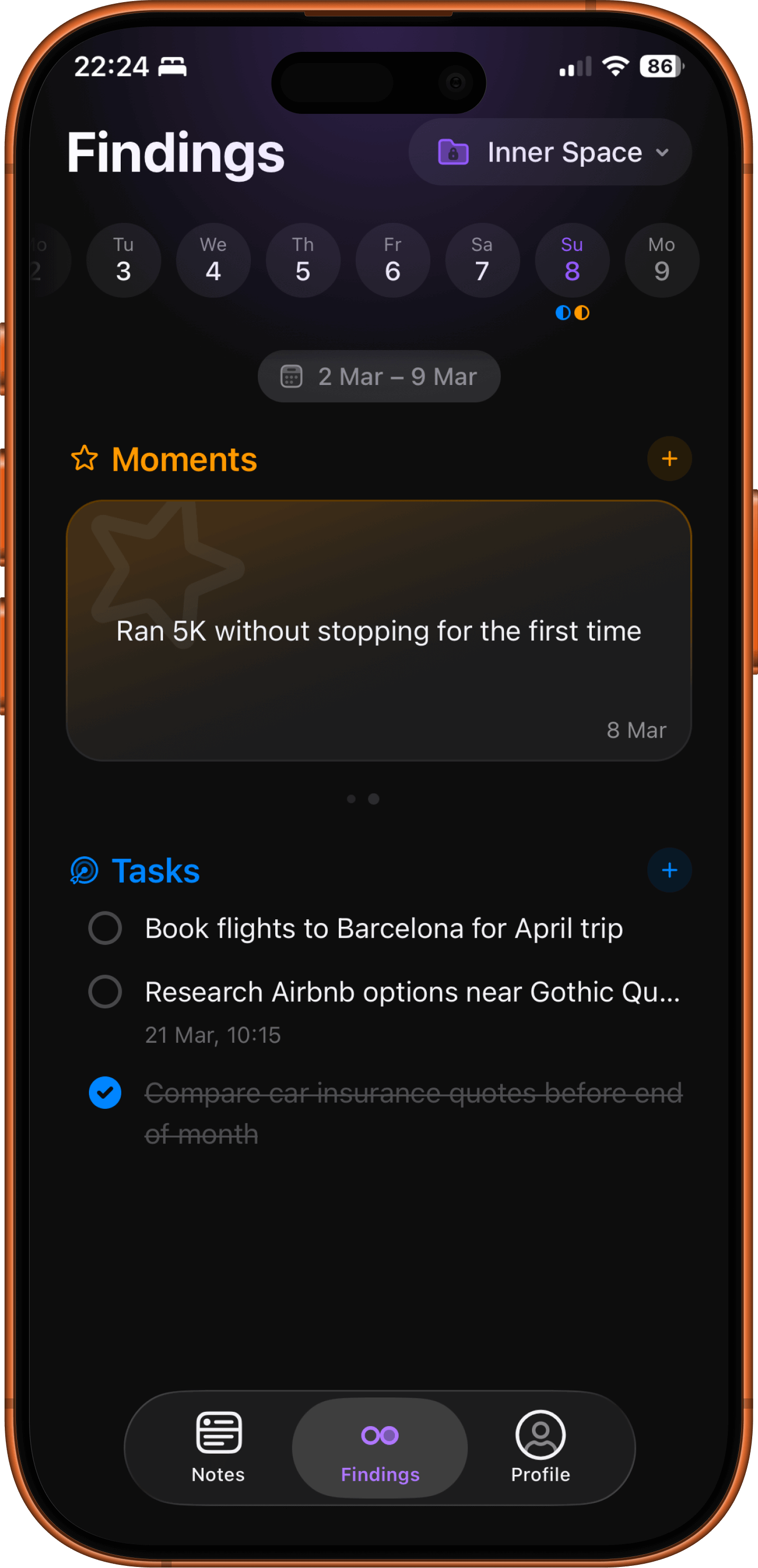
See everything that matters, organized by week
Tap the Findings tab in the bottom navigation bar. This is your dashboard for everything AI has extracted from your voice notes -- tasks with deadlines and meaningful moments.
- Tap the Findings tab in the bottom nav bar
- Browse extracted tasks and moments by day or week
- Mark tasks as complete with one tap
- Moments are saved with dates for easy recall
- Switch folders to see findings from different spaces
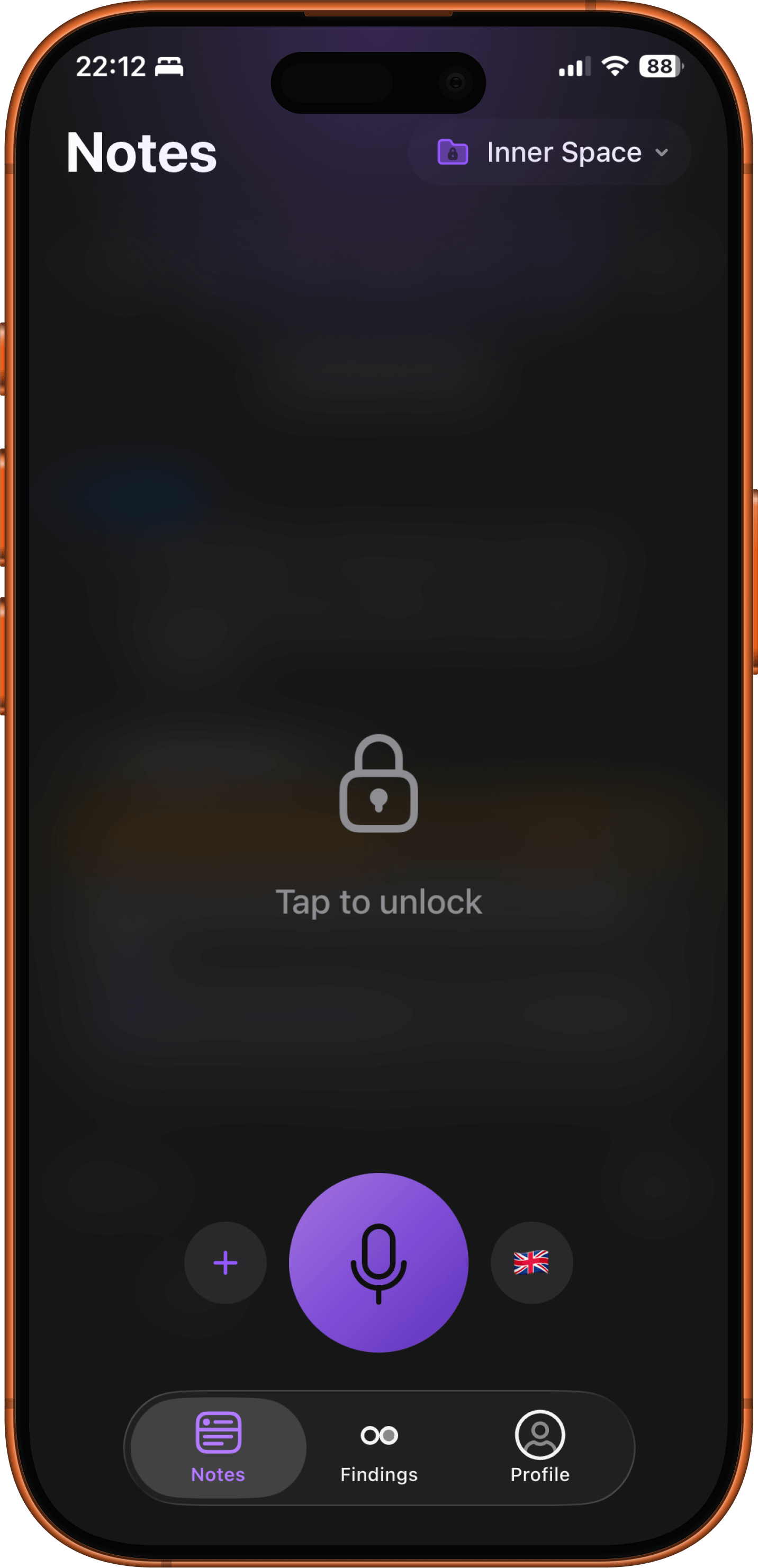
Keep your thoughts truly private
Organize your notes into folders (spaces). Lock any folder with a password or Face ID for extra privacy. When a folder is locked, its contents are hidden behind a "Tap to unlock" screen.
- Create folders to organize notes by topic or area of life
- Lock sensitive folders with Face ID or a password
- Locked folders show "Tap to unlock" until authenticated
- All data stays on your device -- no cloud storage
- No account required to use the app
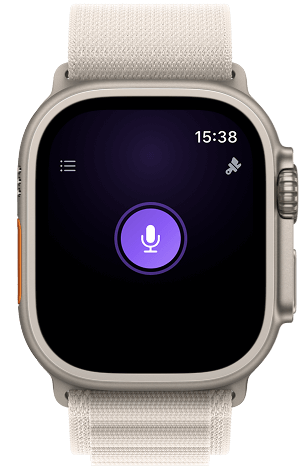
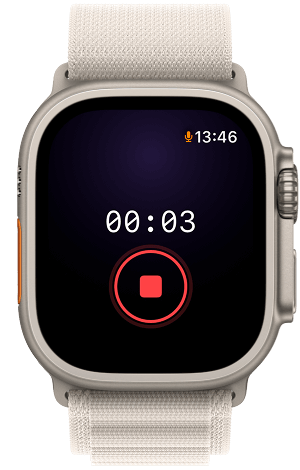
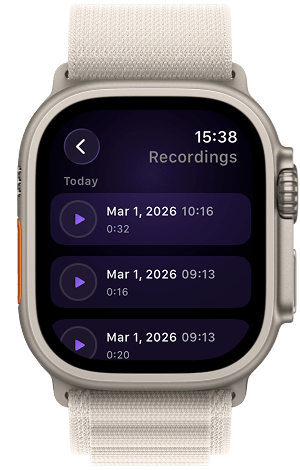
Record from your wrist
Open Happens on your Apple Watch to record voice notes without pulling out your phone. Tap the microphone to start, tap the red stop button when done. Browse and play past recordings directly on your watch.
- Open Happens on Apple Watch and tap the mic to record
- Tap the red stop button to finish recording
- Browse past recordings with the list icon
- Playback recordings directly on your watch
- Recordings sync to your iPhone automatically
Access Happens without opening the app
Add widgets to your Lock Screen and Home Screen for instant recording, quick task views, and more.
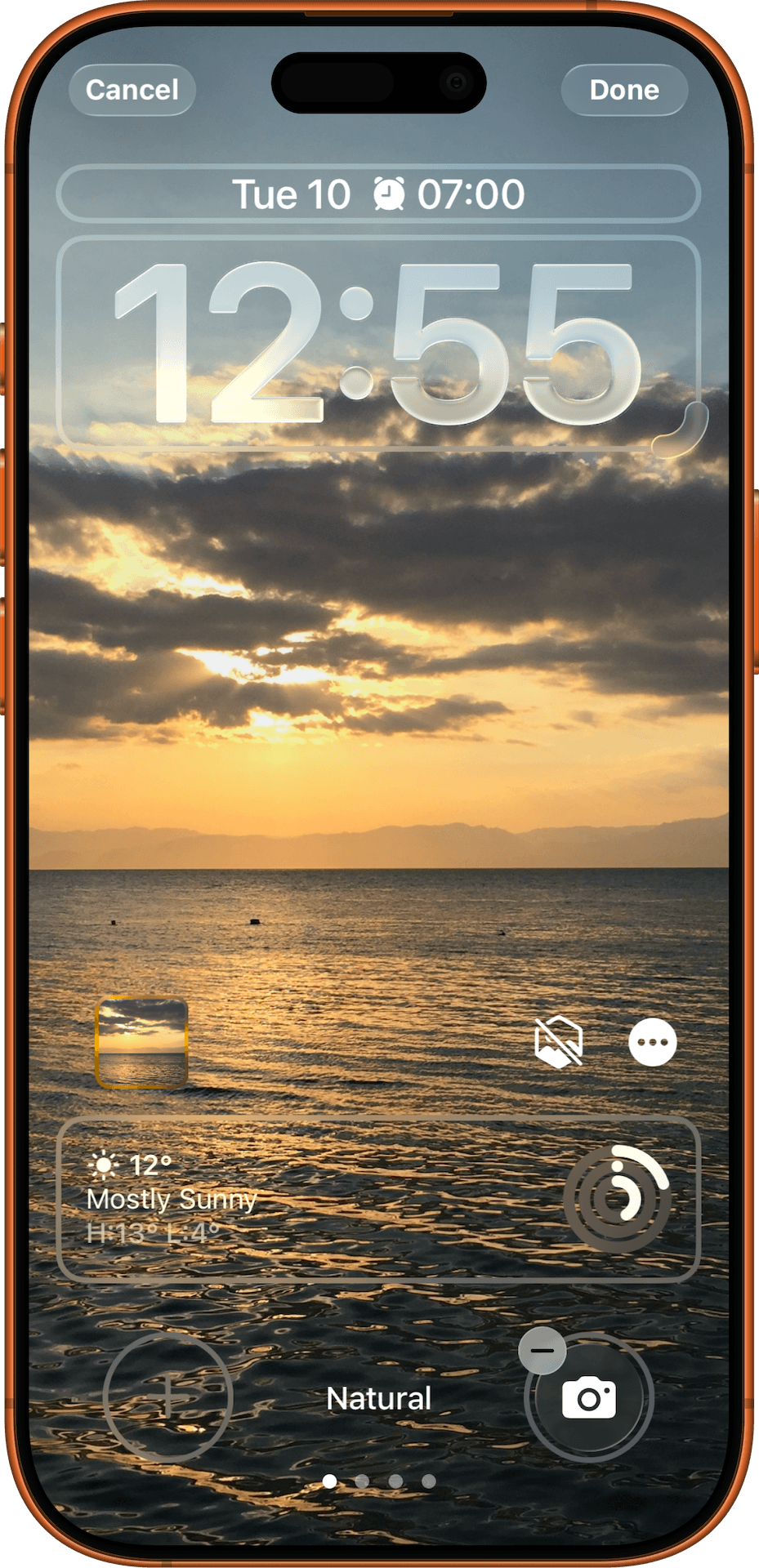
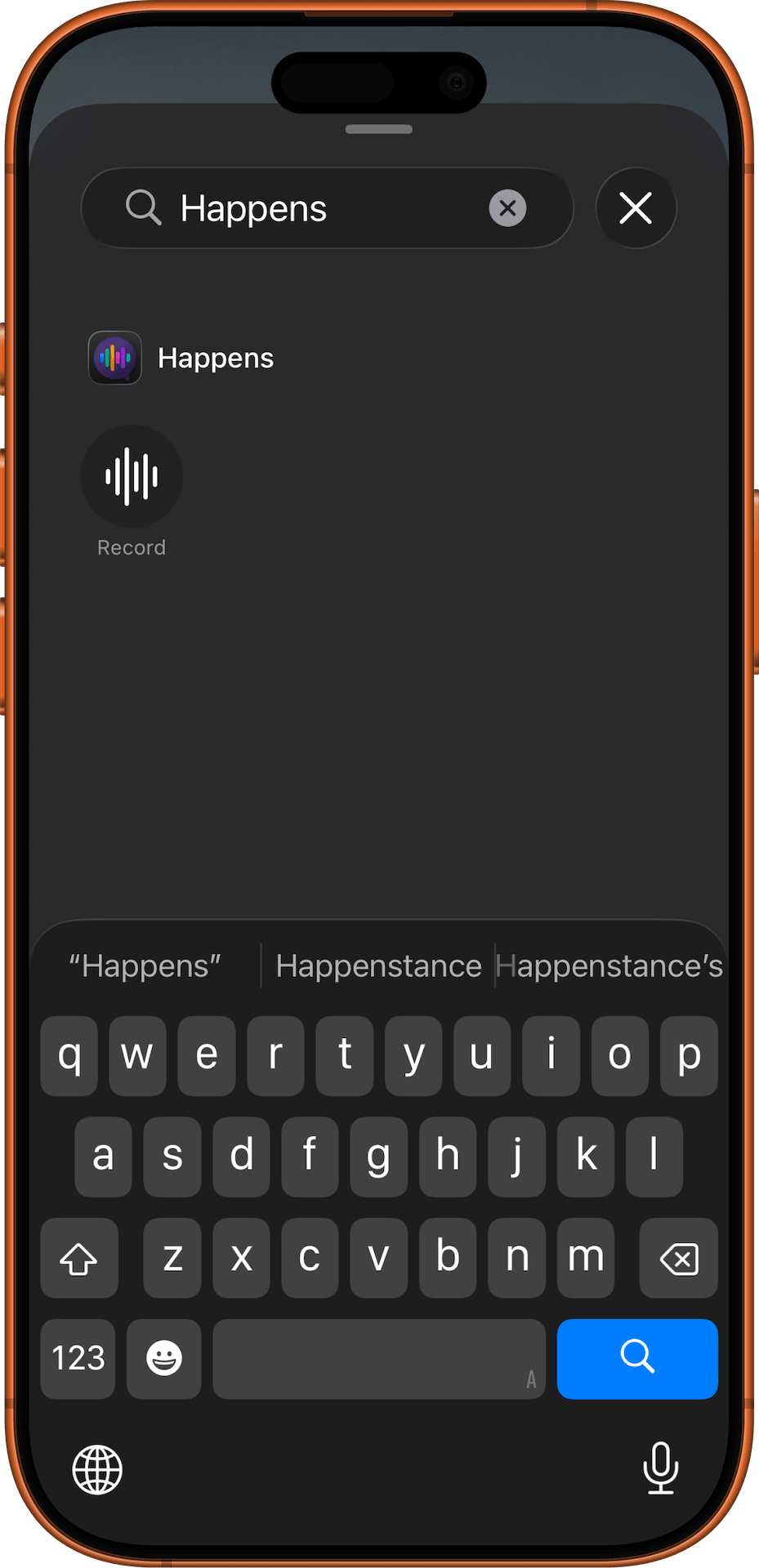
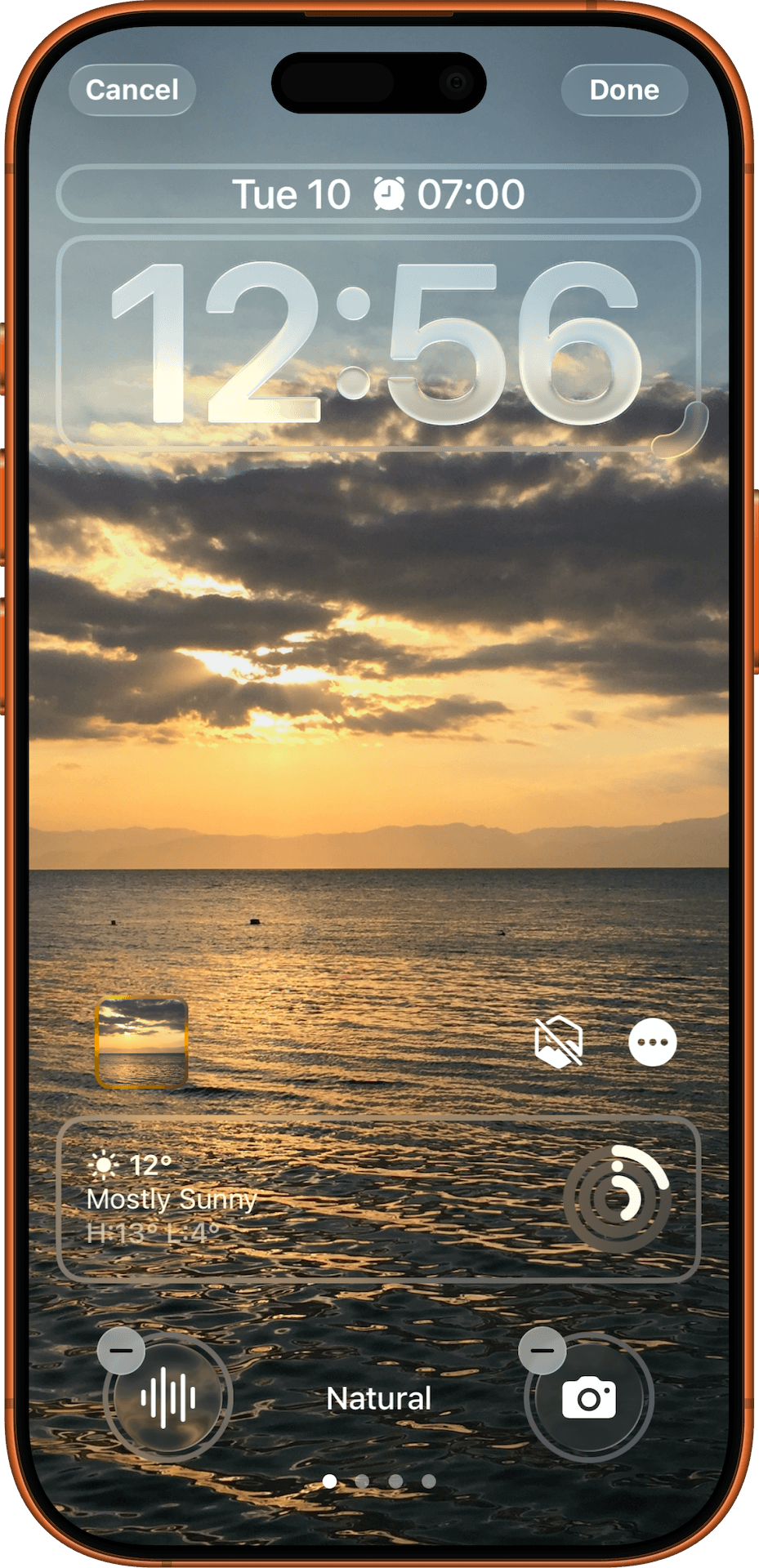
Lock Screen Widget
Place a Happens widget on your Lock Screen for instant recording access. Tap the widget to start a voice note without unlocking your phone or opening the app.
- Long-press your Lock Screen and tap Customize
- Tap the bottom widget area to add widgets
- Search for "Happens" and select the Record widget
- Tap Done to save your customized Lock Screen
- Tap the widget anytime to start recording instantly
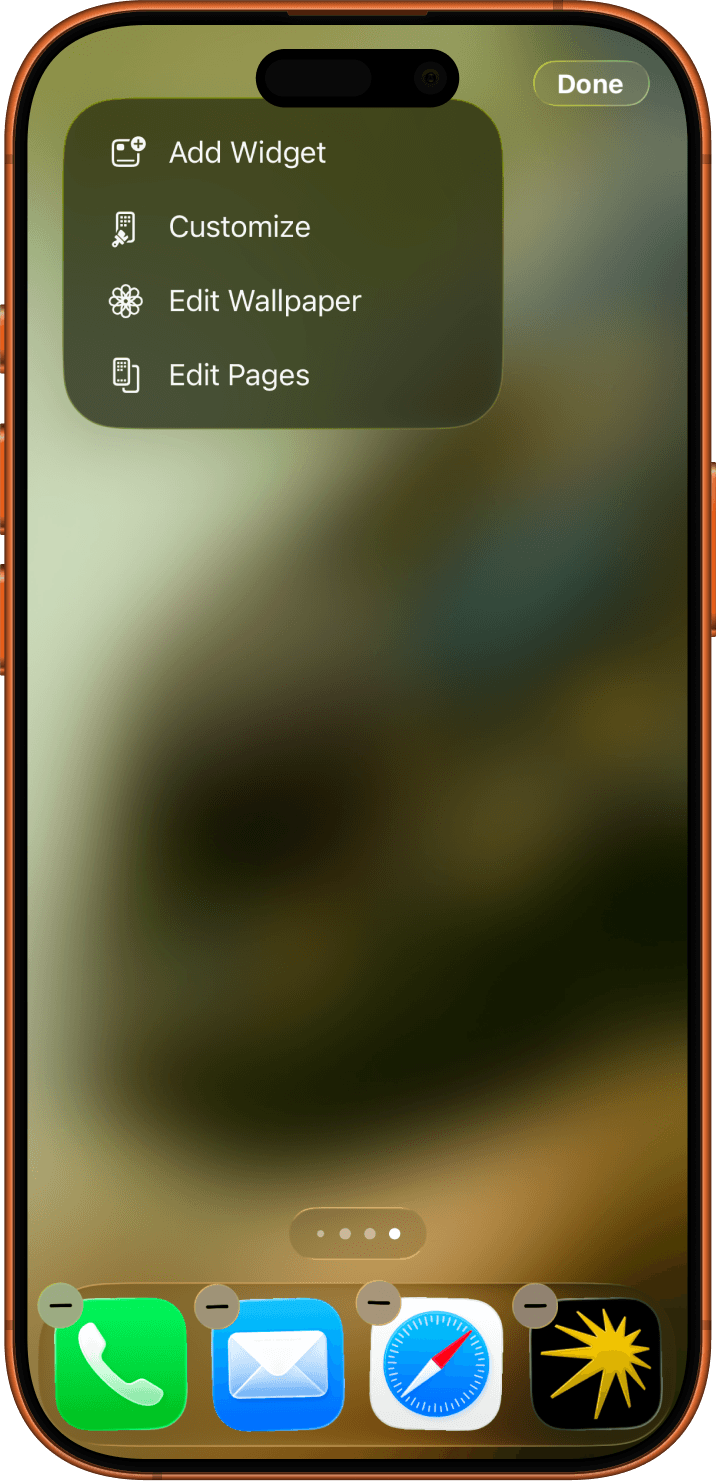
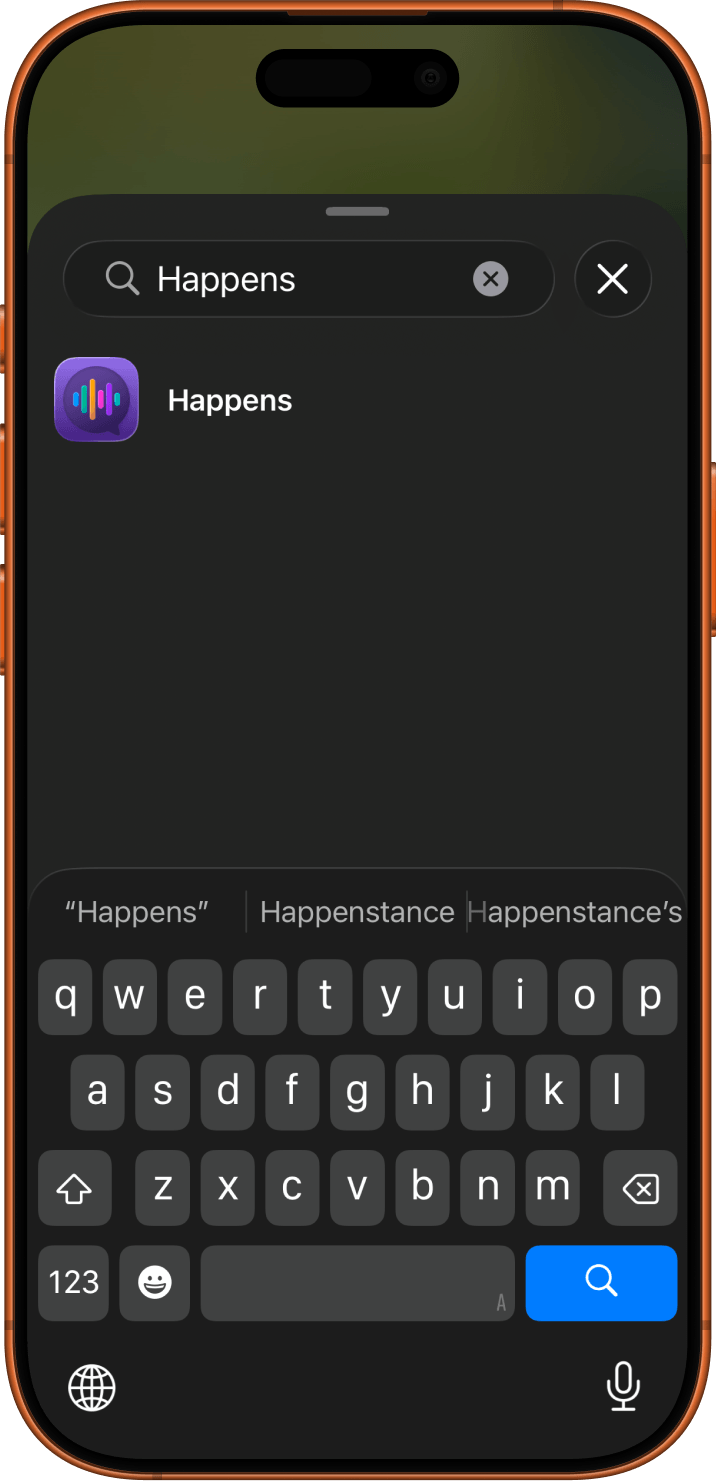
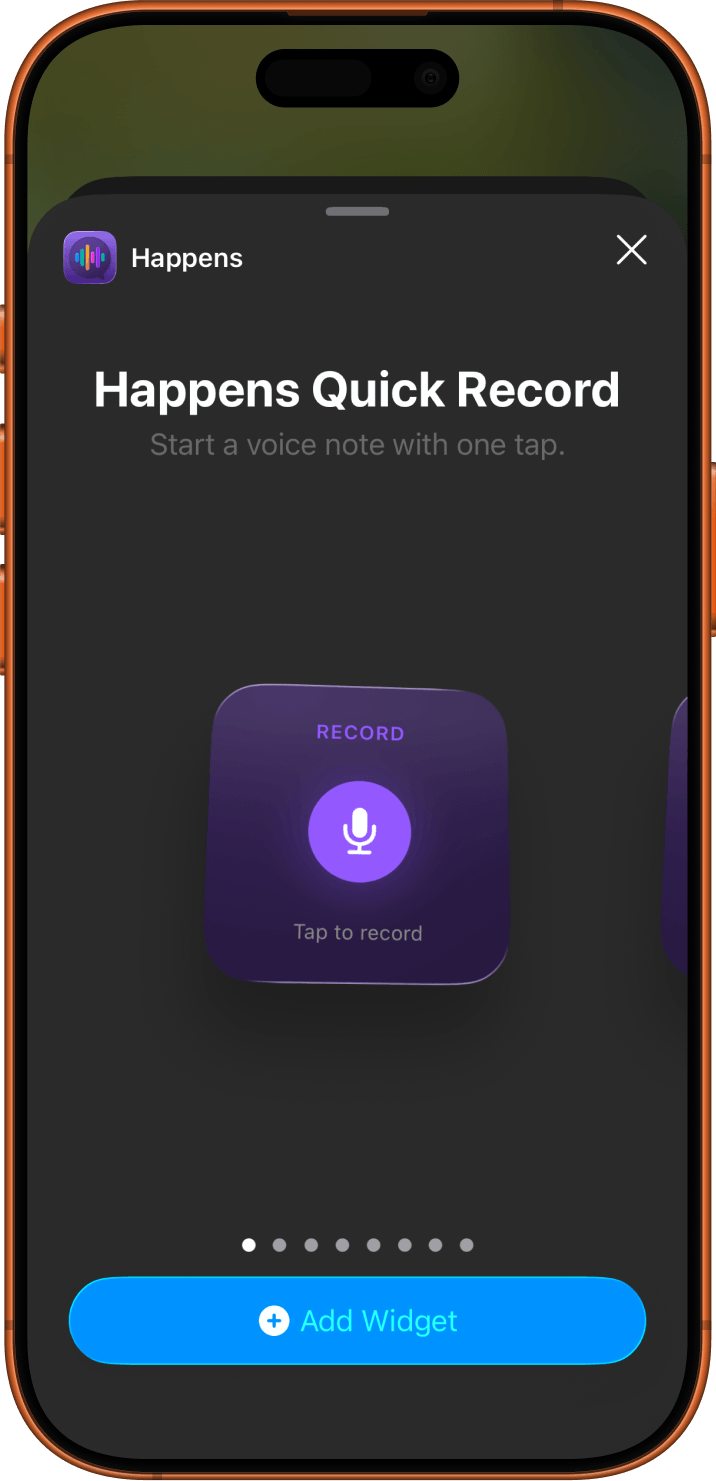
Home Screen Widget
Add Happens widgets to your Home Screen to start recording with one tap, view tasks, or check your latest moments right from the home page.
- Long-press your Home Screen and tap Add Widget
- Search for "Happens" in the widget gallery
- Swipe through available widgets like Quick Record
- Tap Add Widget to place it on your Home Screen
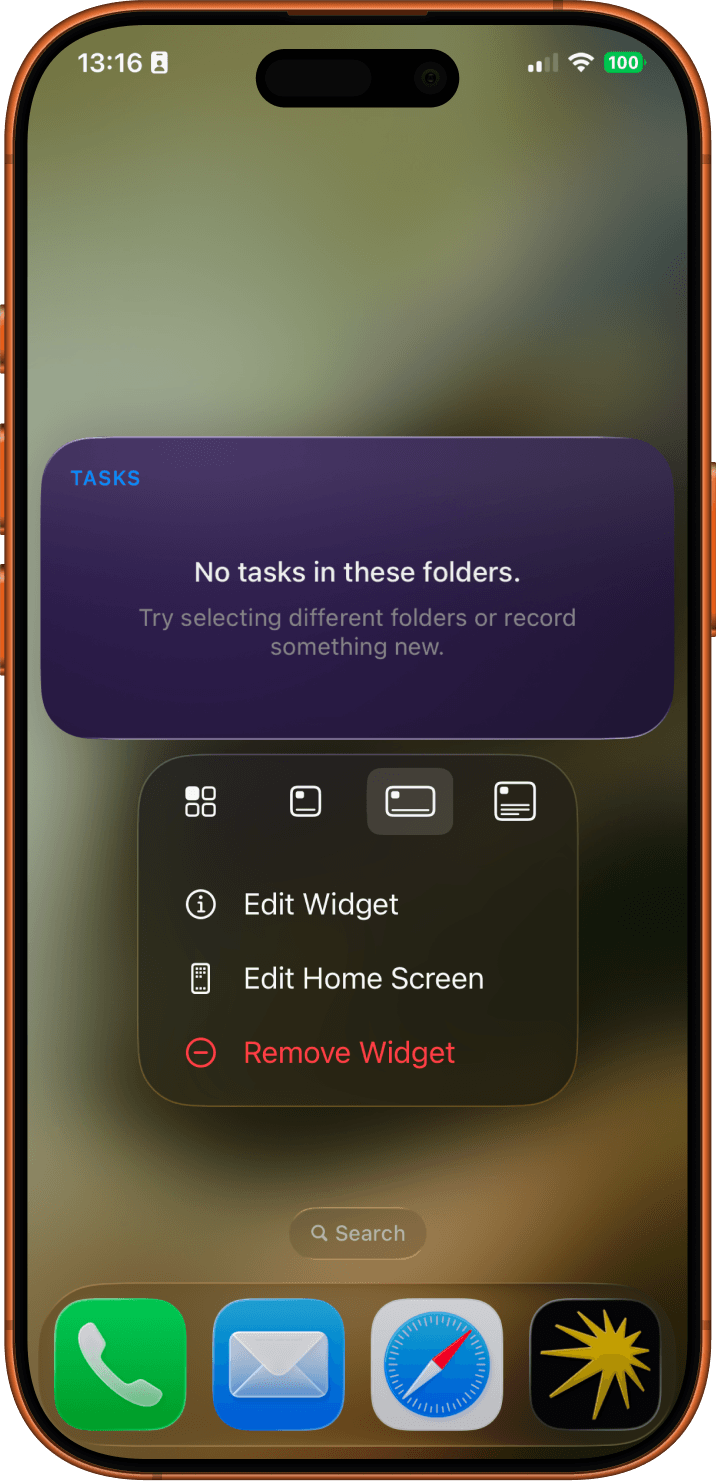
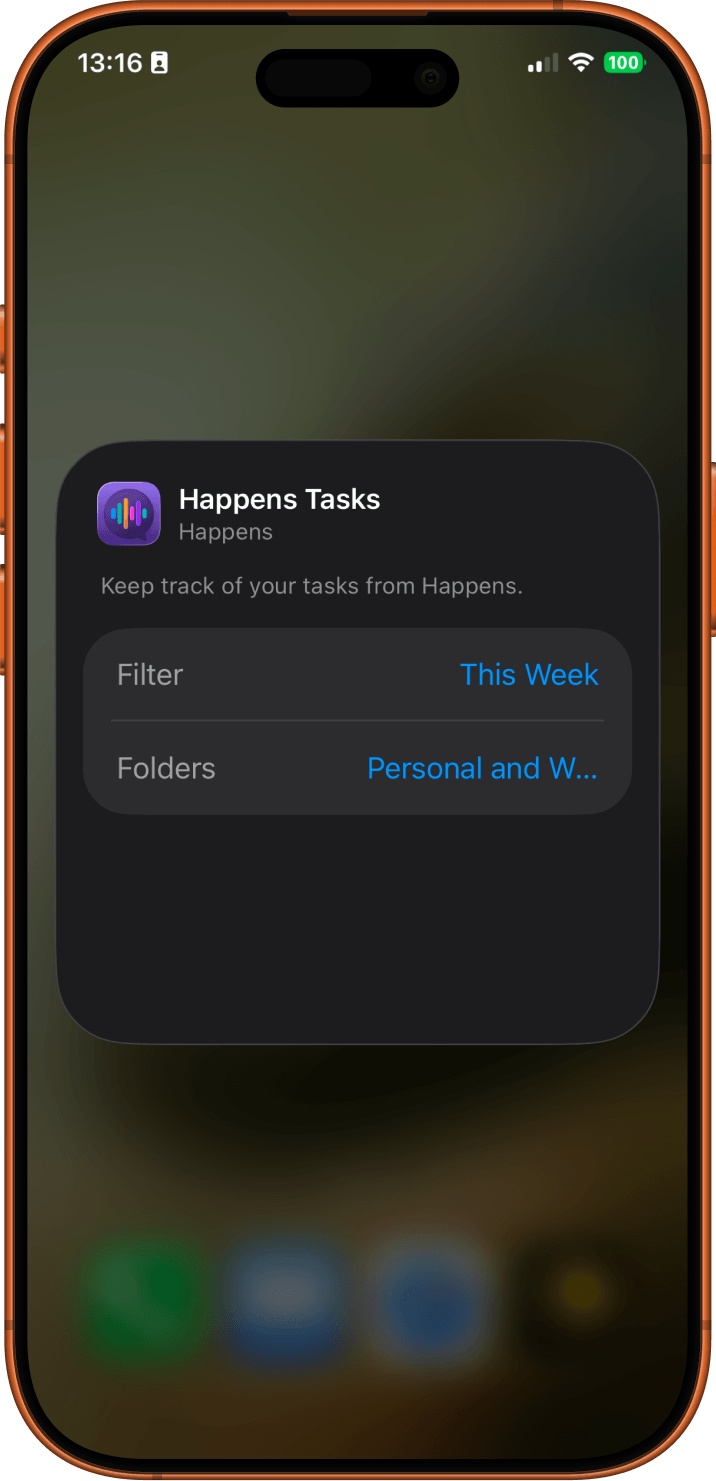
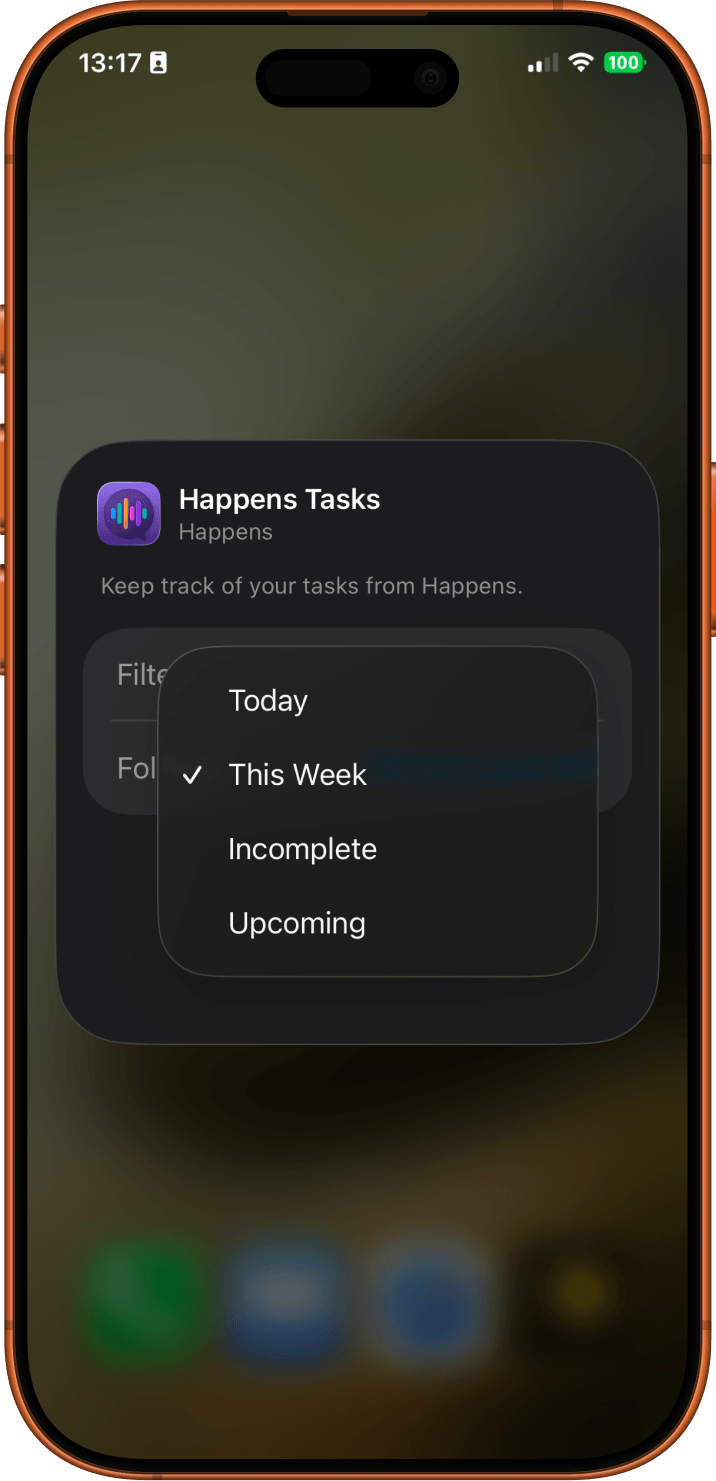
Configure Your Widgets
Customize what each widget shows. Choose specific folders and filters so your widgets display exactly the information you need.
- Long-press any Happens widget and tap Edit Widget
- Set a Filter: Today, This Week, Incomplete, or Upcoming
- Choose which Folders to display content from
- Each widget can have its own unique configuration
Ready to start journaling?
Download Happens and record your first voice note today.
Free to start. No account required.
Start Journaling Free